A development session rarely ends after one command. You write a file, run a program, inspect the result, and try again. A web server might stay up while you work. Tomorrow, you want to return to the same directory.
What should happen to that environment when the Elixir application managing it restarts?
SmolBox 0.2.0 adds managed persistent machines alongside disposable execution. We built a small Phoenix LiveView workspace to make that change tangible: a browser terminal, command history, file transfers, and a Python web service, all using one retained machine.
This post walks through a small project you can keep, leave, and revisit. Along the way, we will separate three things that are easy to confuse: keeping a machine, observing a command, and keeping a browser connected.
A workspace you can come back to
The example uses the published SmolBox 0.2.0 package. There is no private library patch behind the interface. Phoenix provides the UI; smolvm runs the Linux guest and exposes machine, command, file, and terminal operations. SmolBox manages their identities, ownership, reservations, and recovery from Elixir.
Start by creating a workspace, then starting its machine. The configured startup
workload creates /app/project and serves it with Python on guest port 8000.
A host-to-guest mapping makes that page reachable from your browser.
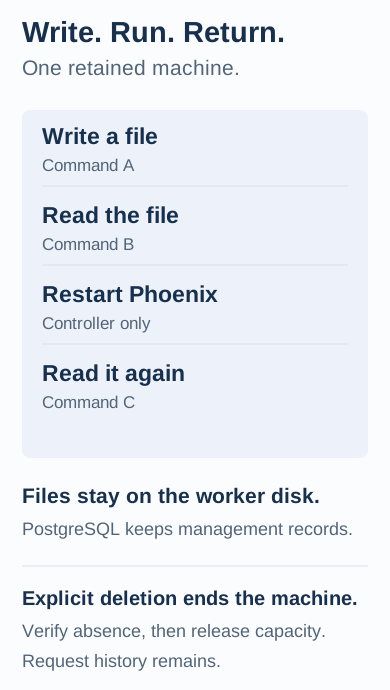
The app keeps one machine across successive commands. Each command gets its own request identity and outcome. Finishing a command leaves the machine and its files in place; deletion is an explicit lifecycle operation.
That gives an Elixir application a useful building block for an interactive training environment, a reproducible debugging session, or a coding tool that needs several turns to finish a task. The example is deliberately a local, single-user application. It does not provide hosted-IDE authentication or a security boundary between tenants.
Bring a worker, an image, and PostgreSQL
There is real infrastructure behind the Create button. Before running the app, you need:
- Elixir 1.18 or later with compatible OTP, Node.js 22 or later, and PostgreSQL 16 or later with a dedicated database.
- A dedicated smolvm 1.17.0 worker on native macOS Apple Silicon or Linux x86_64 with KVM. Run the controller on that worker host.
- An approved native Python
.smolmachineimage containingpython3,/bin/sh,/bin/true, and ordinary shell tools. The image must match the host architecture. - The example's qualified disk profile and a worker file-transfer cap of 16 MiB. Image preparation and host disk tools matter; follow the example prerequisites.
The new app lives in the repository, so clone it even if you already installed the Hex package:
git clone https://github.com/hfiguera/smolbox.git
cd smolbox/examples/community_workspace
mix deps.get
npm --prefix assets ci
mix assets.build
Start your dedicated worker separately, using its original private data and configuration directories. Then configure the app. These paths and the database role are values you supply:
createdb smolbox_workspace
export DATABASE_URL=ecto://127.0.0.1/smolbox_workspace
export SMOLBOX_WORKSPACE_HOME="$PWD/.workspace"
export SMOLBOX_RUNTIME_SOCKET=/absolute/private/path/smolvm.sock
export WORKSPACE_IMAGE=/absolute/path/python.smolmachine
export WORKSPACE_IMAGE_SHA256=your_verified_lowercase_sha256

mix workspace.setup --worker-url http://127.0.0.1 \
  --image "$WORKSPACE_IMAGE" --sha256 "$WORKSPACE_IMAGE_SHA256" \
  --service-port 18080 --preview-url http://127.0.0.1:18080/
mix workspace.check
iex -S mix phx.server
Setup records configuration and applies the store migrations; it creates no
machine. Open http://127.0.0.1:4000, choose Create workspace, then Start
machine. Keep the generated .workspace directory and keys across restarts.
The full setup guide covers HTTP workers, remote hosts, port forwarding,
and image approval. The app binds to loopback; restrict access to worker and
mapped-service ports separately.
Edit a page, then read it in another command
Choose Open terminal, wait for the shell prompt, and enter:
cd /app/project
printf 'Made in the first session.\n' > note.txt
sed -i 's/Your machine. Still here./We can come back to this./' index.html
cat note.txt
exit
Wait for Terminal exited with code 0. Then choose Open service: the page now says “We can come back to this.” You edited a file in the guest, and the already-running Python server served the changed bytes.
Back in Run a command, keep the working directory /app/project and submit:
wc -c note.txt > report.txt; cat report.txtThis is a separate execution reading the file the shell wrote. Collect
/app/project/report.txt in Move a file, then use the download link in
Activity. The example accepts files up to 16 MiB under /app/project and
/home/dev/.config; a missing or oversized file produces a known failure message.
In an integration, the public API behind a command looks like this. This excerpt uses the already configured, running example from its IEx session; it is not a second controller to start beside it:
runtime = Workspace.Settings.runtime()
{:ok, context} = Workspace.Connection.context()
machine_handle = {"workspace", context.settings["workspace_id"]}
{:ok, machine} = SmolBox.Machines.inspect(runtime, machine_handle)

{:ok, command} =
  SmolBox.Command.new(["cat", "note.txt"], workdir: "/app/project")

{:ok, spec} =
  SmolBox.ExecutionSpec.new(
    scope: machine.scope,
    id: Ecto.UUID.generate(),
    artifact: machine.spec.artifact,
    profile: machine.spec.profile,
    command: command
  )

{:ok, execution_handle} = SmolBox.Machines.submit(runtime, machine_handle, spec)
{:ok, execution} = SmolBox.await(runtime, execution_handle, 40_000)
%SmolBox.Result{exit_code: 0, stdout: bytes} = execution.result
{:ok, %{state: :running, active_execution: nil}} =
  SmolBox.Machines.await(runtime, machine_handle, 10_000)
IO.write(bytes)
The machine handle stays the same; the execution ID identifies this new request. Keep an ID when retrying the same request. Generate another only for intentionally new work. The final machine wait matters because a command's result can become available just before its exclusive machine slot is released. Direct API calls appear in SmolBox's execution store; the demo's Activity UI lists requests submitted through its own action ledger.
Restart Phoenix, keep the project
Finish foreground work and exit the terminal before this step. Note the machine identity at the top of the page, stop the Phoenix app, and start it again with the same database, private configuration, keys, and worker.
Reload the browser. The identity and request history return. Run cat note.txt
again: the first session's text is still there. The controller recovered its
management records; the worker retained the machine and its filesystem.
Now choose Stop machine, wait for Stopped, then Start machine. The
files remain. The configured startup workload launches the Python service again;
it appends another line to starts.txt, which you can inspect from a command.
A separately launched background process is not automatically relaunched.
PostgreSQL records are not a backup of the guest's disk. Losing the worker disk is a different failure from restarting Phoenix. SmolBox does not silently replace a missing workspace with an empty one.
Three lifetimes worth separating
The machine and its files persist; each command and terminal connection still has its own lifecycle.
The machine remains until explicitly deleted. In this example, stopping it still retains its full resource reservation, including disk. Finish by choosing Delete → Confirm deletion only when you are done with the project. Deletion must verify absence before capacity is released; request history and already collected downloads remain.
A foreground command is observed until it returns or its observation ends. The example offers a 1–600-second timeout, while the library supports larger host-approved budgets. Background returns launch evidence and a typed PID; it does not promise the process is still alive or supervise its eventual exit. A development server's readiness needs its own check.
A browser terminal is a live connection to a shell. The example can reconnect a brief browser interruption to the same attachment within 30 seconds while the original controller remains alive. Previously acknowledged terminal output is not restored. An app restart, longer interruption, or explicit disconnect can leave an unknown outcome. Cancellation after dispatch also does not prove that a guest process stopped.
Unknown work keeps the command slot blocked. Follow the operator recovery procedure instead of submitting the same work with a fresh ID. That conservative behavior is useful: a missing reply should not become an accidental second installation, build, or background launch.
Retain a machine or restore a fresh one?
The previous checkpoint article prepares guest state once and restores a separate disposable VM for each job. Persistent machines serve a different workflow:
| You need… | A useful starting point |
|---|---|
| A job whose files and environment can be discarded afterward | Disposable execution |
| Independent jobs beginning from the same approved prepared state | A prepared image, or an approved idle checkpoint when memory matters |
| Several commands that deliberately build on each other's changes | A managed persistent machine |
Retaining a workspace also retains mistakes and accumulated state. That is useful when you are debugging an evolving project; a fresh environment is often easier to reason about for independent jobs.
Try it with your own small project
The workspace example includes setup, recovery instructions, a browser walkthrough, and validation evidence. The walkthrough shown here was tested with a native macOS Apple Silicon worker.
Start with something inspectable: one file, one command that changes it, and one command that reads it after a controller restart. That gives you a concrete test of what your application means by “persistent.”
What would you build on this: a coding-agent workspace, an interactive training environment, or a place to reproduce bugs? Open a discussion through an issue with the workflow and the failure you most need it to handle.